How to Modify Two-Step Verification Options
Please use a desktop or laptop computer to complete these steps.
To add the authenticator app to a new phone:
- Navigate to reset.bryant.edu and select Change Two-Factor Options.
- Click Next after typing in your username and Sign in once you finish entering your password.
-
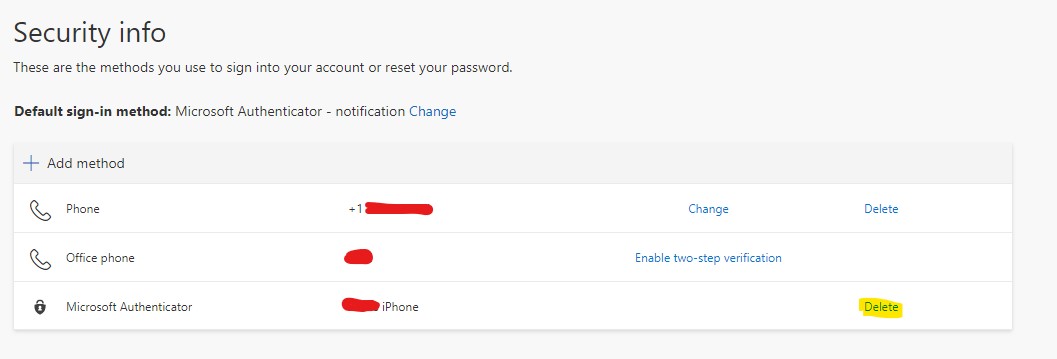
Once you're on the Security Info page, click Delete on the Microsoft Authenticator line (once you click delete you will want to confirm you want to delete the number by clicking OK in the pop up window). If you get stuck on a blue Loading circle, refresh the page.
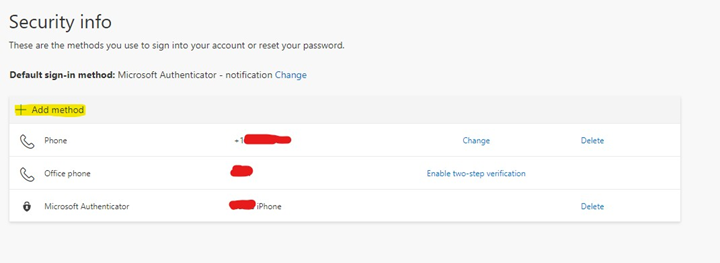
- You will then want to click Add method
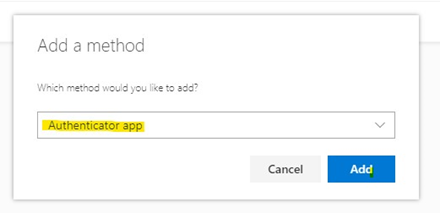
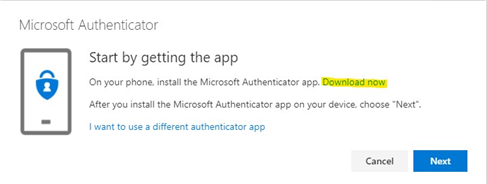
- Follow the steps it provides on the web page including downloading the Authenticator app on your mobile phone or smart device, scanning the QR code on the screen using the app, and clicking Next when you are finished with each step.
- Navigate to reset.bryant.edu and select Change Two-Factor Options.
- Click Next after typing in your username and Sign in once you finish entering your password.
-
Once you're on the Security Info page, click Delete on the Microsoft Authenticator line (once you click delete you will want to confirm you want to delete the number by clicking OK in the pop up window). If you get stuck on a blue Loading circle, refresh the page.
- You will then want to click Add method
- Follow the steps it provides on the web page including downloading the Authenticator app on your mobile phone or smart device, scanning the QR code on the screen using the app, and clicking Next when you are finished with each step.
To change your phone number:
- Navigate to reset.bryant.edu and select Change Two-Factor Options
- Click Next after typing in your username and Sign in once you finish entering your password.
- Change the phone number by clicking on Change
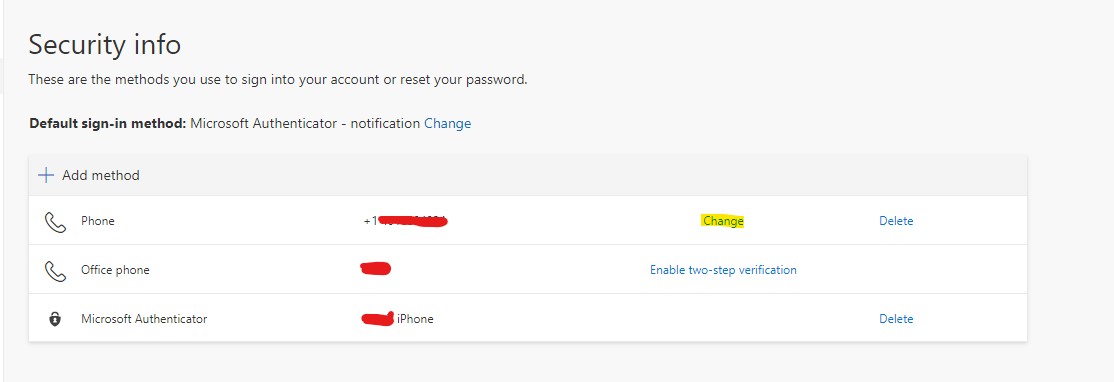
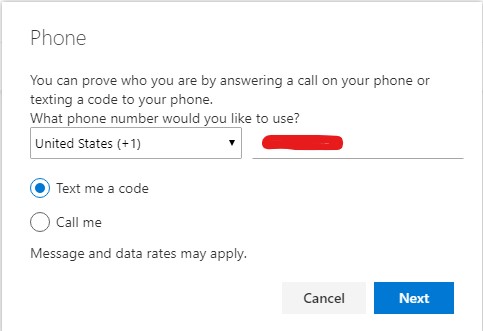
- Then adding the phone number you would like to change on the window that pops up
- Navigate to reset.bryant.edu and select Change Two-Factor Options
- Click Next after typing in your username and Sign in once you finish entering your password.
- Change the phone number by clicking on Change
- Then adding the phone number you would like to change on the window that pops up
To change your email:
- Navigate to reset.bryant.edu and select Change Two-Factor Options.
- Click Next after typing in your username and Sign in once you finish entering your password.
- Click Add Method
- Choose Email in the drop-down menu and click Add
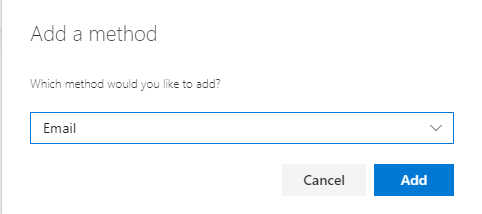
- Type in your email and select Next
- It will send a verification code to that email, open your email to get the verification code, type it in and then select Next
- Your email will be successfully registered after this process and show on the list of authentication methods.
- Navigate to reset.bryant.edu and select Change Two-Factor Options.
- Click Next after typing in your username and Sign in once you finish entering your password.
- Click Add Method
- Choose Email in the drop-down menu and click Add
- Type in your email and select Next
- It will send a verification code to that email, open your email to get the verification code, type it in and then select Next
- Your email will be successfully registered after this process and show on the list of authentication methods.
If your Bryant account gets locked:
- If you receive an error message that your account has been locked when you attempt to sign-in, continue through the screen that you receive.
- You will be brought to a page to reset your Bryant account password:
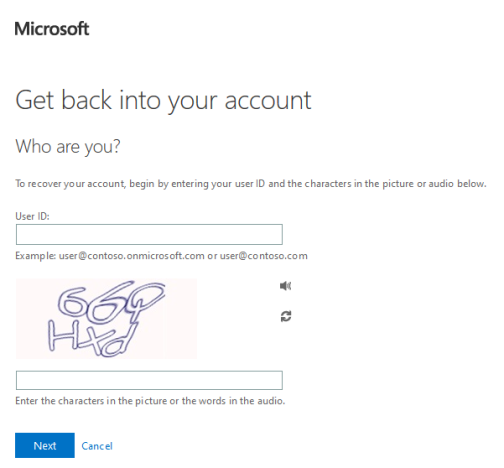
- Type in your Bryant email address and verify the captcha ID and select Next to continue.
- Choose from the list of verification methods with either having a code or call sent to your phone or a notification sent to your Authenticator application.
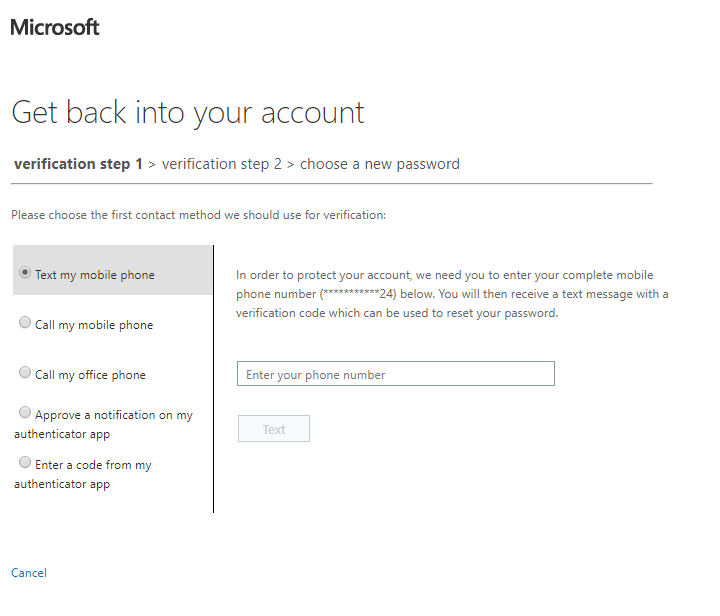
- Once you’ve been approved with the verification methods you will be able to reset your password.
- If you receive an error message that your account has been locked when you attempt to sign-in, continue through the screen that you receive.
- You will be brought to a page to reset your Bryant account password:
- Type in your Bryant email address and verify the captcha ID and select Next to continue.
- Choose from the list of verification methods with either having a code or call sent to your phone or a notification sent to your Authenticator application.
- Once you’ve been approved with the verification methods you will be able to reset your password.